How to stop Slack or Teams links opening in the wrong browser or profile
Slack and Teams hand links to your default browser, in whatever profile was used last. A BroSwitch rule on the app the link was clicked in sends every Slack link to your work profile.
Without extra software
macOS has a single default browser and no notion of “which app the link came from”. You can only make Chrome the default and remember to click into your work window before each link.
With BroSwitch
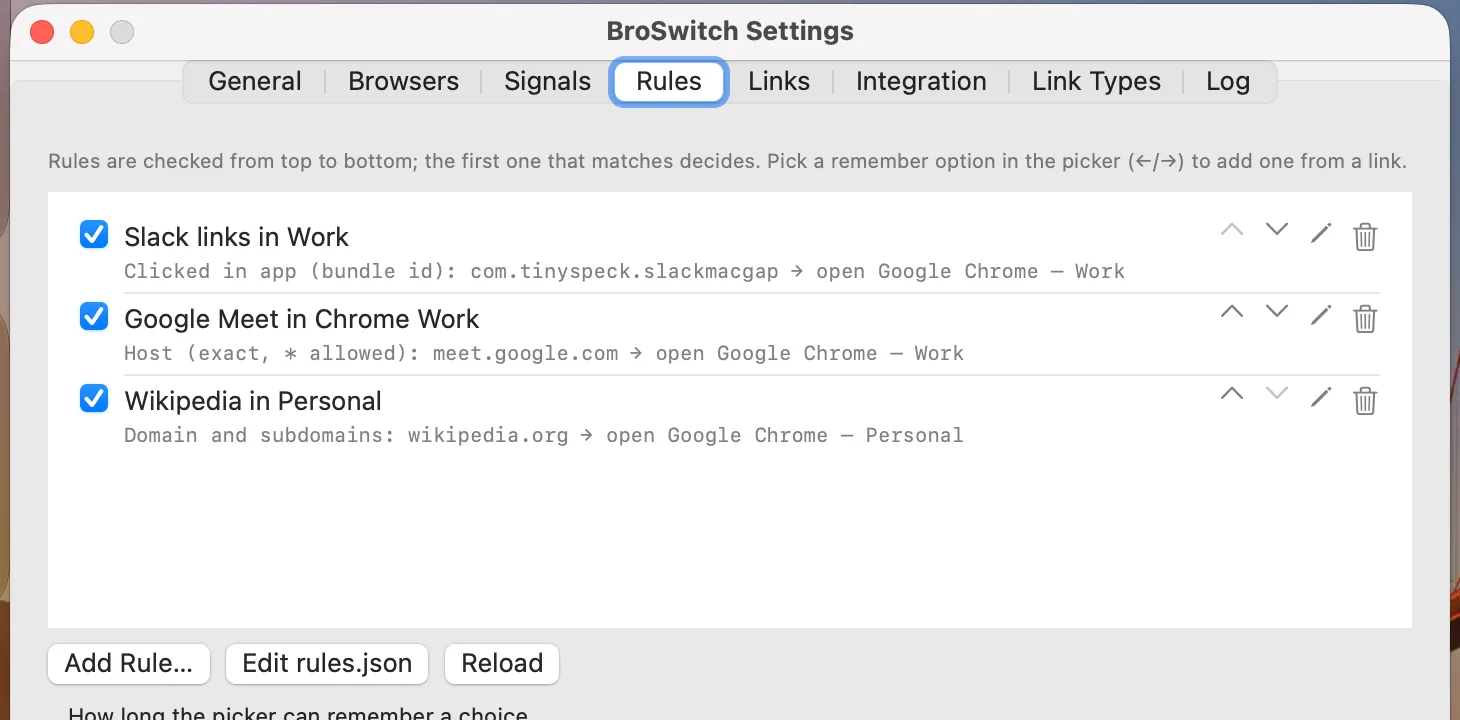
- Open BroSwitch Settings › Rules and click Add Rule…
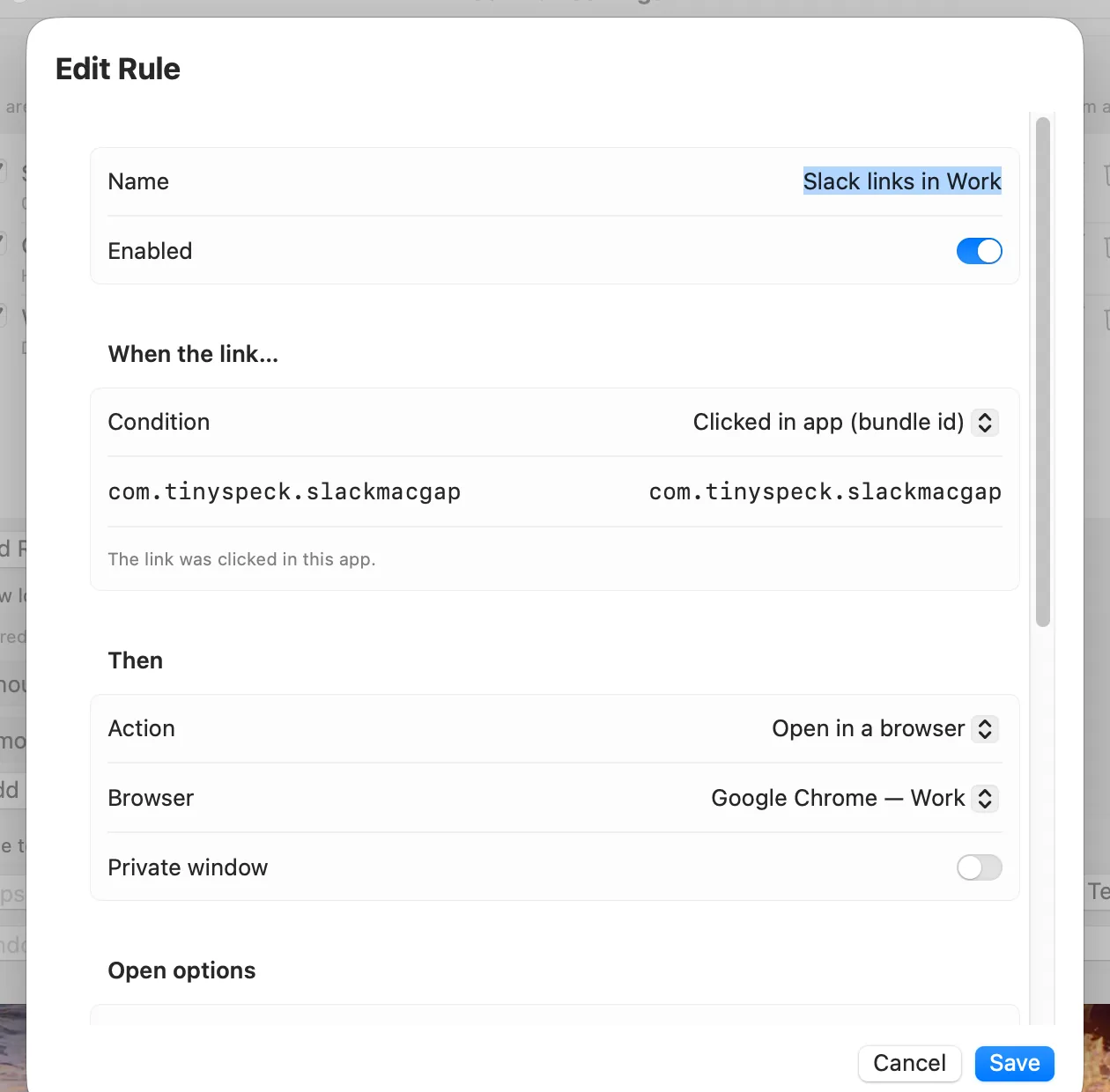
- Set Condition to Clicked in app (bundle id) and enter
com.tinyspeck.slackmacgapfor Slack (orcom.microsoft.teams2for Teams). - Set Action to Open in a browser and pick your work profile, for example Google Chrome — Work.
- Click Save. Rules are checked from top to bottom; the first one that matches decides.
Two Slack workspaces, one work and one personal? Turn on Use the title of the window a link was clicked in in Settings › Signals (it needs Accessibility permission): a rule can then match the workspace name in the Slack window title.
Watch it
Questions
- How do I find an app’s bundle id?
- Click a link in that app once: the Log tab in BroSwitch Settings shows it in the “From” column.
- Do rules beat the automatic choice?
- Yes. Your rules win over every signal (signed-in sessions, history).